Worktrunk: One Worktree per Coding Agent
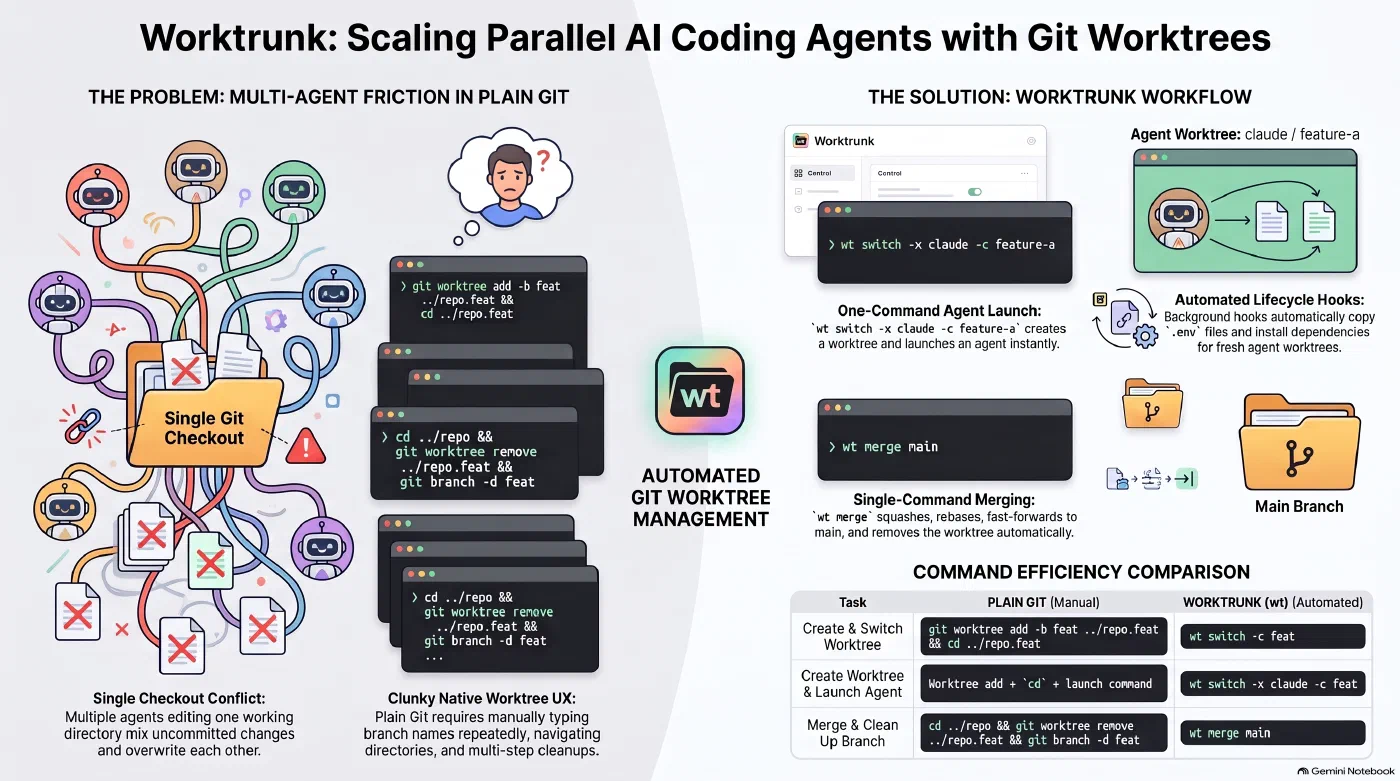
Several agents in one checkout versus one worktree per agent with Worktrunk - AI generated
Introduction
This is the third post in my series on how my development workflow has changed. The first two posts covered planning with OpenSpec and tracking the work with Beads . This post covers Worktrunk, the tool that lets me run several coding agents on the same repository at the same time without them getting in each other’s way.
One Checkout, Several Agents
A Git repository usually has one working directory, and that directory has exactly one branch checked out. Branches keep the histories apart, but every agent working in that directory edits the same files. If one agent switches to another branch, the files change underneath the other agent. If both edit at the same time, their uncommitted changes mix, and neither can commit its work cleanly.
Git has a feature for this: worktrees. git worktree add creates an additional working directory that belongs to the same repository. Each worktree has its own branch and its own checkout of the files, so an agent can edit and commit in it without touching the other worktrees. What the worktrees share is the repository database. The history is not copied, and a commit made in one worktree is visible in all others right away. Git enforces one rule here: a branch can be checked out in only one worktree at a time.
A worktree has two limits. It only isolates files, so agents in different worktrees still share everything outside the repository, such as ports and local databases. And a new worktree contains only tracked files, which means that node_modules or a .env file have to be installed or copied again.
What Worktrunk Adds
With plain Git, creating a worktree for a new branch looks like this:
git worktree add -b feature-auth ../my-project.feature-auth
cd ../my-project.feature-auth
The branch name appears three times, and cleaning up later takes two more commands, git worktree remove and git branch -d. With several agents running, this bookkeeping adds up.
Worktrunk is a command-line tool by Maximilian Roos that removes it. It addresses worktrees by branch name and derives the path from a template, by default a folder next to the repository named <repository>.<branch>. It also adds a status view across all worktrees and a merge command that brings a branch back into the default branch in one step. And it can start a coding agent directly in a new worktree. The command is wt.
Installing Worktrunk
Worktrunk is available through Homebrew and Cargo, among other package managers:
brew install worktrunk && wt config shell install
# or
cargo install worktrunk && wt config shell install
The second command sets up the shell integration. Without it, wt can create worktrees but cannot move your shell into them.
Working with Worktrunk
Creating a branch and a worktree and moving into it is one command:
wt switch --create feature-auth
wt switch feature-auth returns to that worktree later, and wt switch ^ goes back to the default branch. wt list shows every worktree with its state relative to the default branch and its latest commit, which is the quickest way to see what each agent has done so far.
When the work in a worktree is finished, wt merge, run from inside the worktree, squashes the commits, rebases them onto the default branch, fast-forwards the default branch and removes the worktree. wt remove cleans up a worktree without merging.
For agents, the -x option starts a program in the new worktree. Everything after -- goes to that program, so this line creates a worktree and starts Claude Code in it with a prompt:
wt switch -x claude -c feature-a -- 'Add a login form'
The same works with Codex (-x codex) or any other agent that runs in a terminal. Running the line again in a second terminal, with a different branch name, starts a second agent in a second worktree. Claude Code can also create worktrees itself with claude --worktree <name> and places them under .claude/worktrees/ in the repository. Worktrunk does the same for any agent and handles the merge as well.
Hooks take care of the setup a fresh worktree needs. They are defined in a .config/wt.toml file in the repository and run commands at points such as the creation of a worktree, for example to install dependencies. wt step copy-ignored copies gitignored files like .env into a new worktree, which takes care of the second limit from above.
Since .config/wt.toml is committed, its hooks run shell commands on every machine that checks out the repository, so Worktrunk asks for approval before a project hook runs for the first time and again whenever its command changes.
Worktrunk can also write commit messages with a language model. My configuration in ~/.config/worktrunk/config.toml calls Claude Code in headless mode with the small Haiku model, without tools and without a session history:
[commit.generation]
command = "MAX_THINKING_TOKENS=0 claude -p --no-session-persistence --model=haiku --tools='' --safe-mode --setting-sources='user' --system-prompt=''"
Conclusion
Worktrees solve the problem of several agents sharing one checkout, and Worktrunk makes them practical for daily use. One caveat: Worktrunk has not reached version 1.0 yet and releases frequently. Some releases in September 2026 changed flags and hook variables in incompatible ways. This affects scripts and hook templates more than interactive use. If you build on it, pin the version.
In the last post of this series, I put OpenSpec, Beads and Worktrunk together and describe the workflow I use for small projects today.
References
Author: Dr. Stephan Michard
Words: 954